---
title: SkyWalker TUI
description: Interactive terminal dashboard for spectrum analysis, transponder scanning, signal monitoring, L-band analysis, and carrier tracking.
---
import { Tabs, TabItem, Steps, Aside, Badge } from '@astrojs/starlight/components';
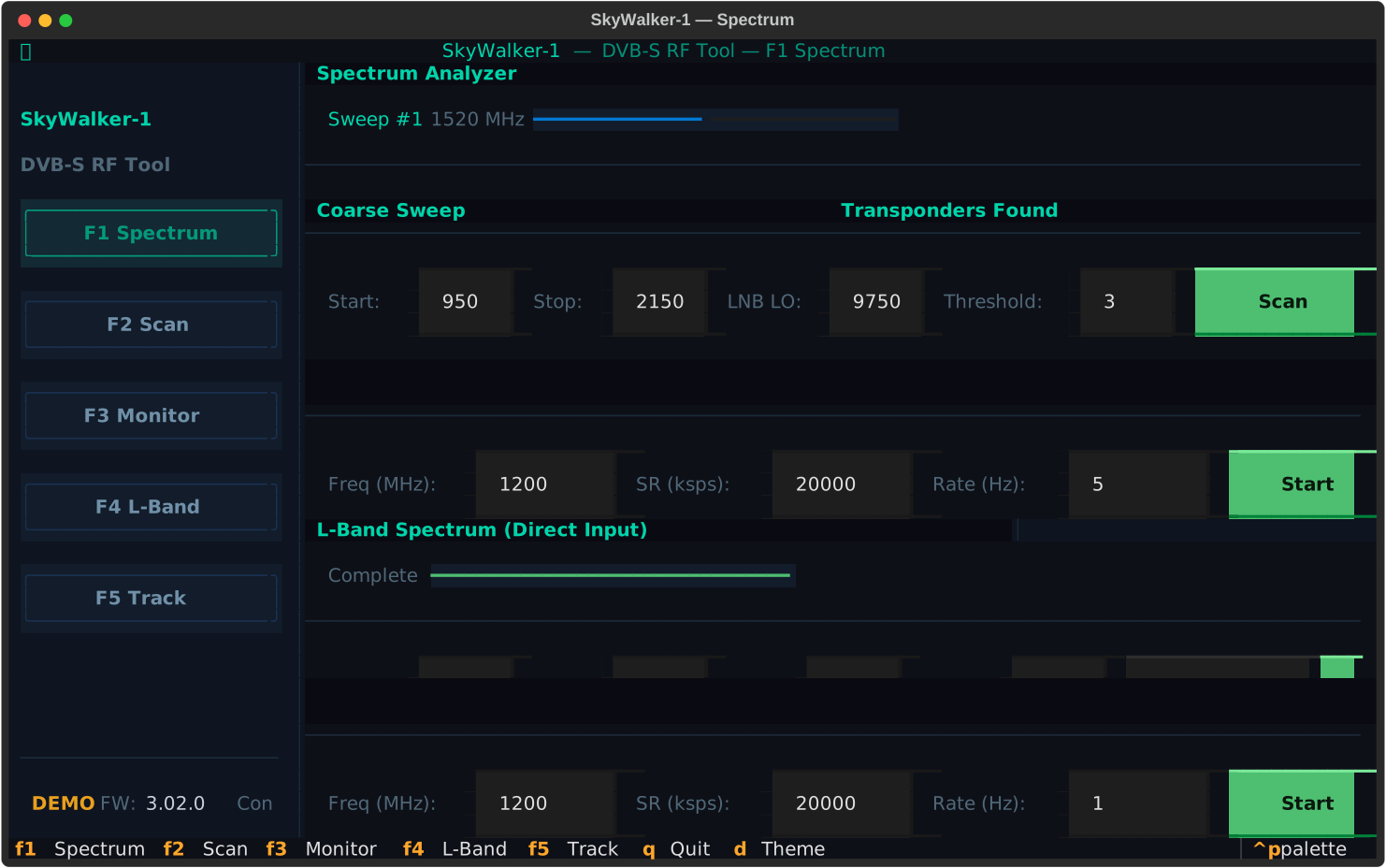
The SkyWalker TUI is a full-screen terminal dashboard built on [Textual](https://textual.textualize.io/) that wraps all five RF operating modes into a single interactive interface. Sidebar navigation, F-key shortcuts, real-time widget updates, and a dark/light theme toggle replace the separate CLI subcommands with a unified experience.
## Installation
The TUI is distributed as the `skywalker-tui` package from the `tui/` directory in the repository.
```bash title="Install with uv"
cd tui && uv sync
```
```bash title="Run with hardware"
sudo uv run skywalker-tui
```
```bash title="Run in demo mode (no hardware)"
uv run skywalker-tui --demo
```
### CLI Flags
| Flag | Description |
|------|-------------|
| `--demo` | Synthetic signal data — no SkyWalker-1 USB device needed |
| `--no-splash` | Skip the startup splash screen |
| `--verbose, -v` | Verbose USB logging (hardware mode only) |
| `MODE` | Initial mode: `spectrum` (default), `scan`, `monitor`, `lband`, `track` |
---
## Keyboard Shortcuts
| Key | Action |
|-----|--------|
| F1 | Spectrum analyzer |
| F2 | Transponder scanner |
| F3 | Signal monitor |
| F4 | L-Band analyzer |
| F5 | Carrier tracker |
| d | Toggle dark/light theme |
| q | Quit |
| Ctrl+W | Easter egg |
| Esc | Dismiss overlay / skip splash |
The sidebar buttons mirror the F-key shortcuts — click or press to switch modes. The active mode is highlighted in the sidebar.
---
## Screens
Each mode is a self-contained screen with its own widgets, workers, and layout. Switching modes pauses the previous screen's polling and starts the new one.
### Spectrum
Sweep spectrum analyzer across the 950–2150 MHz IF range. Renders a bar chart of signal power at each frequency step with a scrolling waterfall display below.

- Bar chart with color-coded signal levels (blue → green → yellow → red)
- Waterfall display showing power over time
- Peak detection markers above the noise floor
- Configurable sweep range, step size, and dwell time
### Scan
Three-phase automated transponder search: coarse sweep, fine sweep around peaks, and blind scan at each refined candidate across a range of symbol rates.
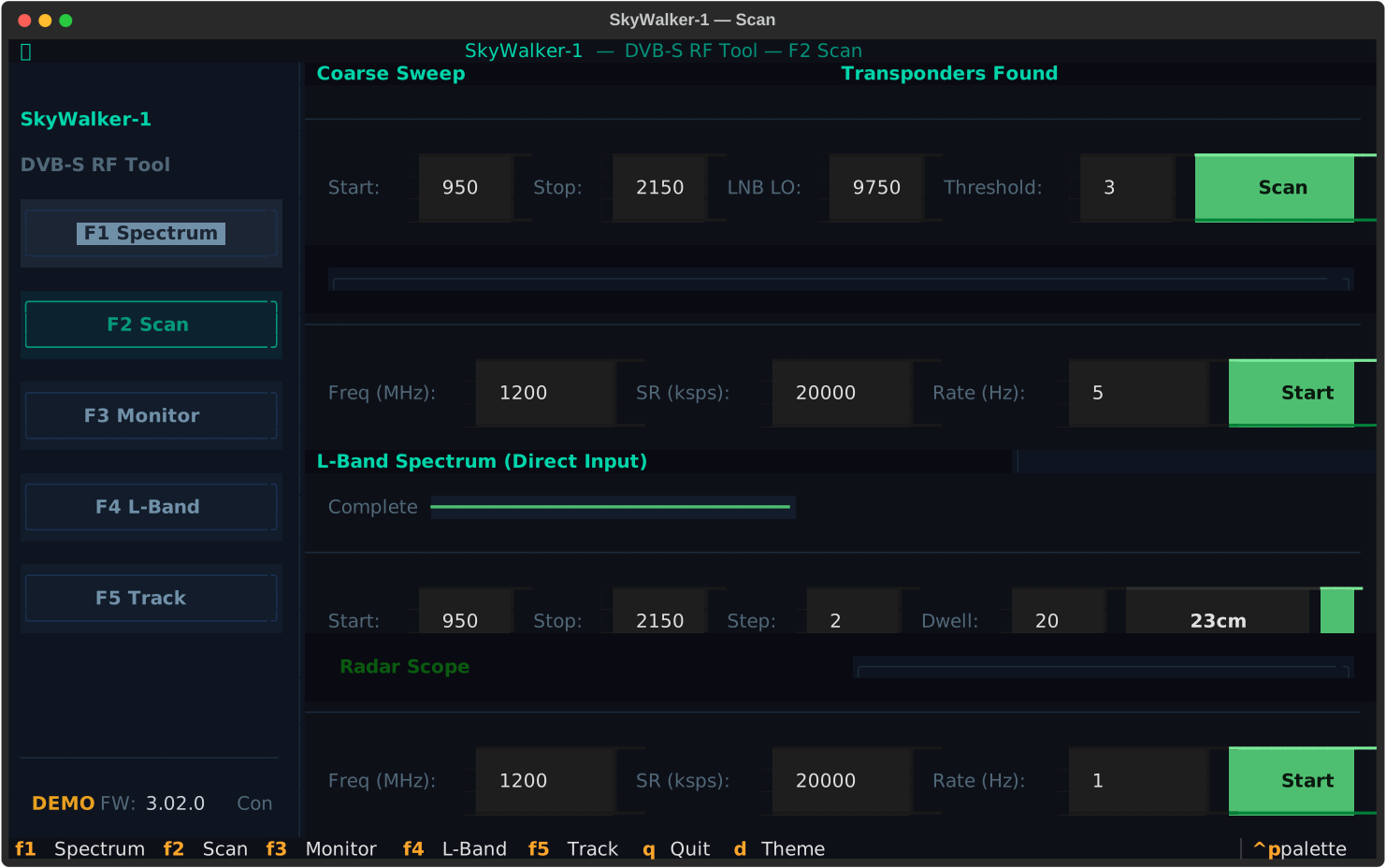
1. **Coarse sweep** at 10 MHz steps to identify candidate carriers
2. **Fine sweep** at 2 MHz steps around each detected peak
3. **Blind scan** at each refined peak, trying symbol rates from min to max
- Progress indicator for each phase
- Results table with frequency, symbol rate, and lock status
- Supports Ku-band, C-band, and custom LO configurations
### Monitor
Real-time signal strength display for hands-free dish alignment. Tunes to a single frequency and polls continuously with visual feedback.
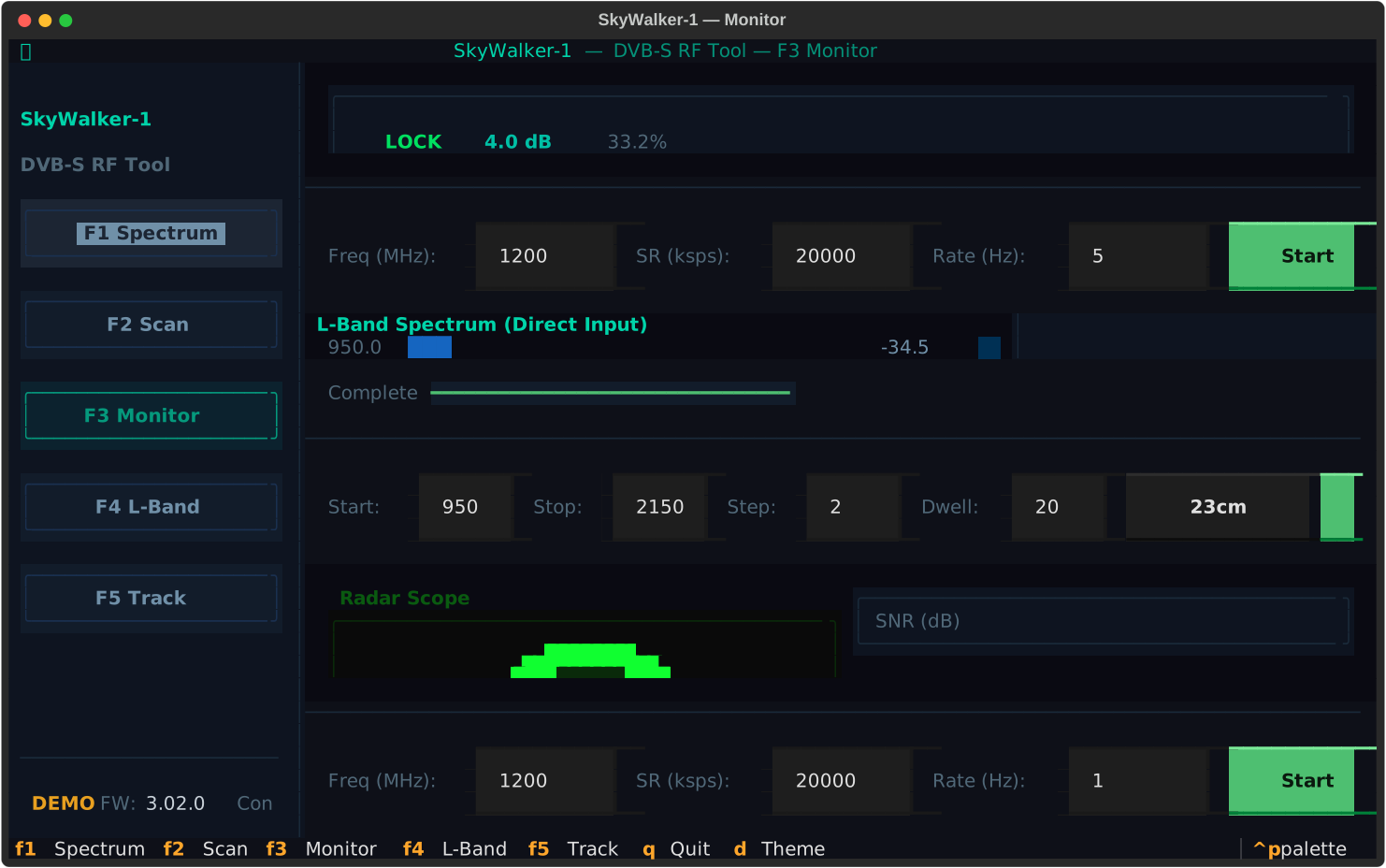
- Signal gauge with lock/unlock status indicator
- Sparkline history of recent signal strength samples
- SNR and AGC readouts
- Designed for dish alignment — visual feedback without needing to read numbers
### L-Band
Direct RF input analysis in the 950–2150 MHz range with LNB power disabled. Annotates known L-band frequency allocations.
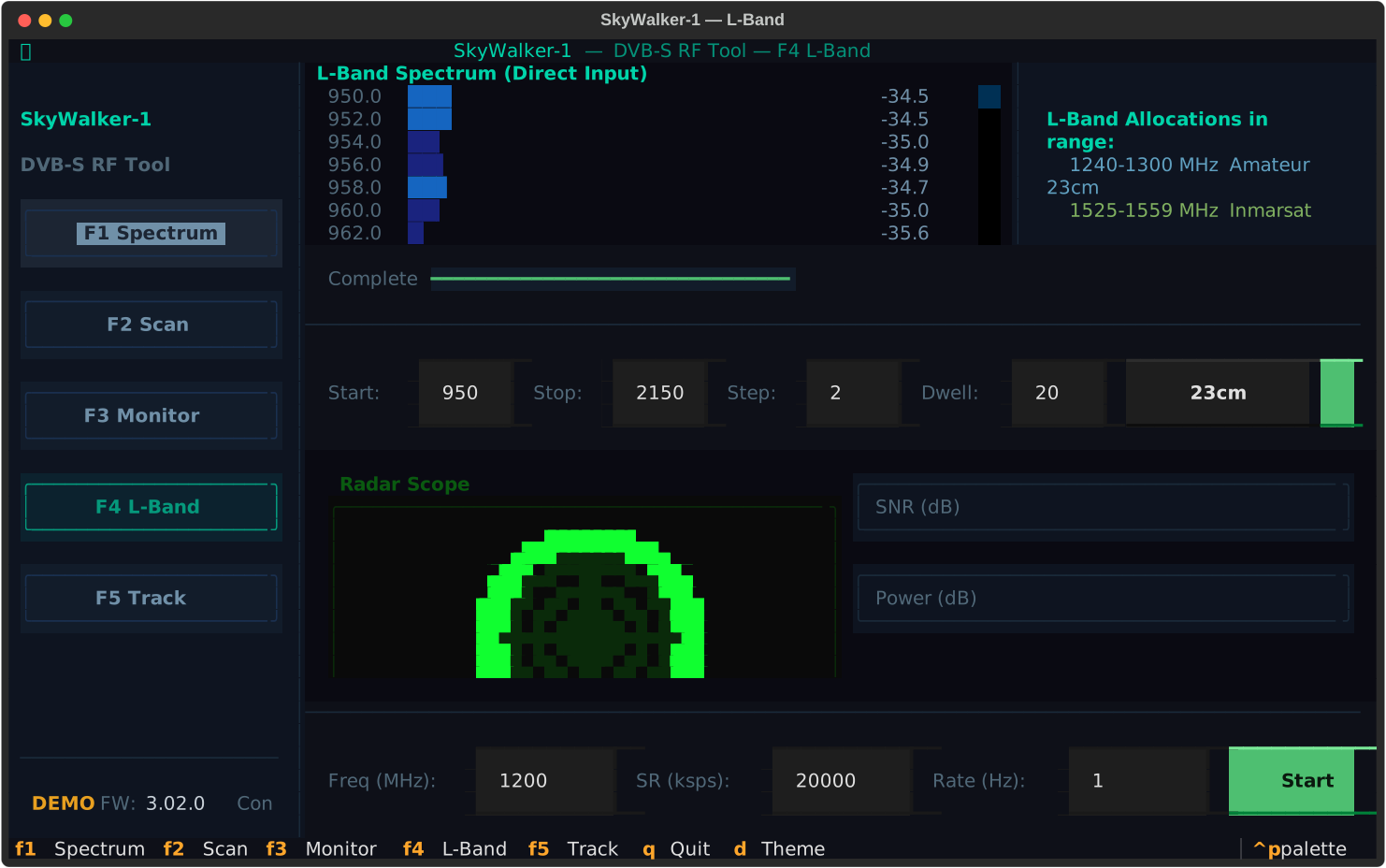
- Same sweep engine as Spectrum mode, but with `lnb_lo=0` and LNB voltage off
- Frequency allocation overlays for Amateur 23cm, GNSS, Inmarsat, Iridium, MetSat
- Detects carrier presence regardless of modulation compatibility
### Track
Carrier/beacon tracker with timestamped logging. Tracks a single frequency and detects lock/unlock transitions over time.
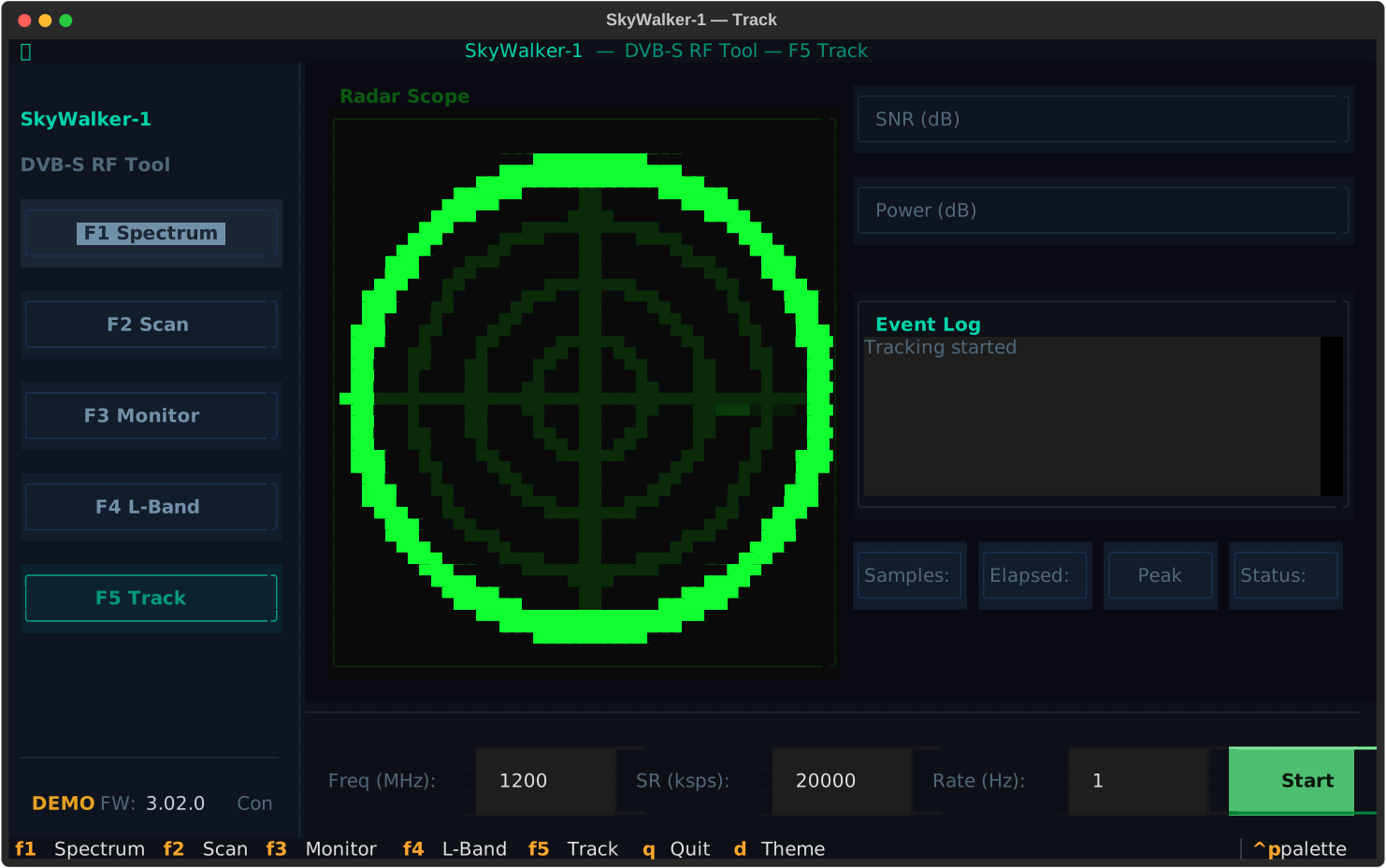
- Radar scope display showing signal history
- Sparkline for signal power trend
- Event log with timestamped lock/unlock transitions
- Frequency drift detection
---
## Easter Eggs
### Dark Side Toggle
Press d to toggle between dark and light themes. Switching to dark mode triggers a notification:
> *"Welcome to the Dark Side."*
> — The Force is strong with this one
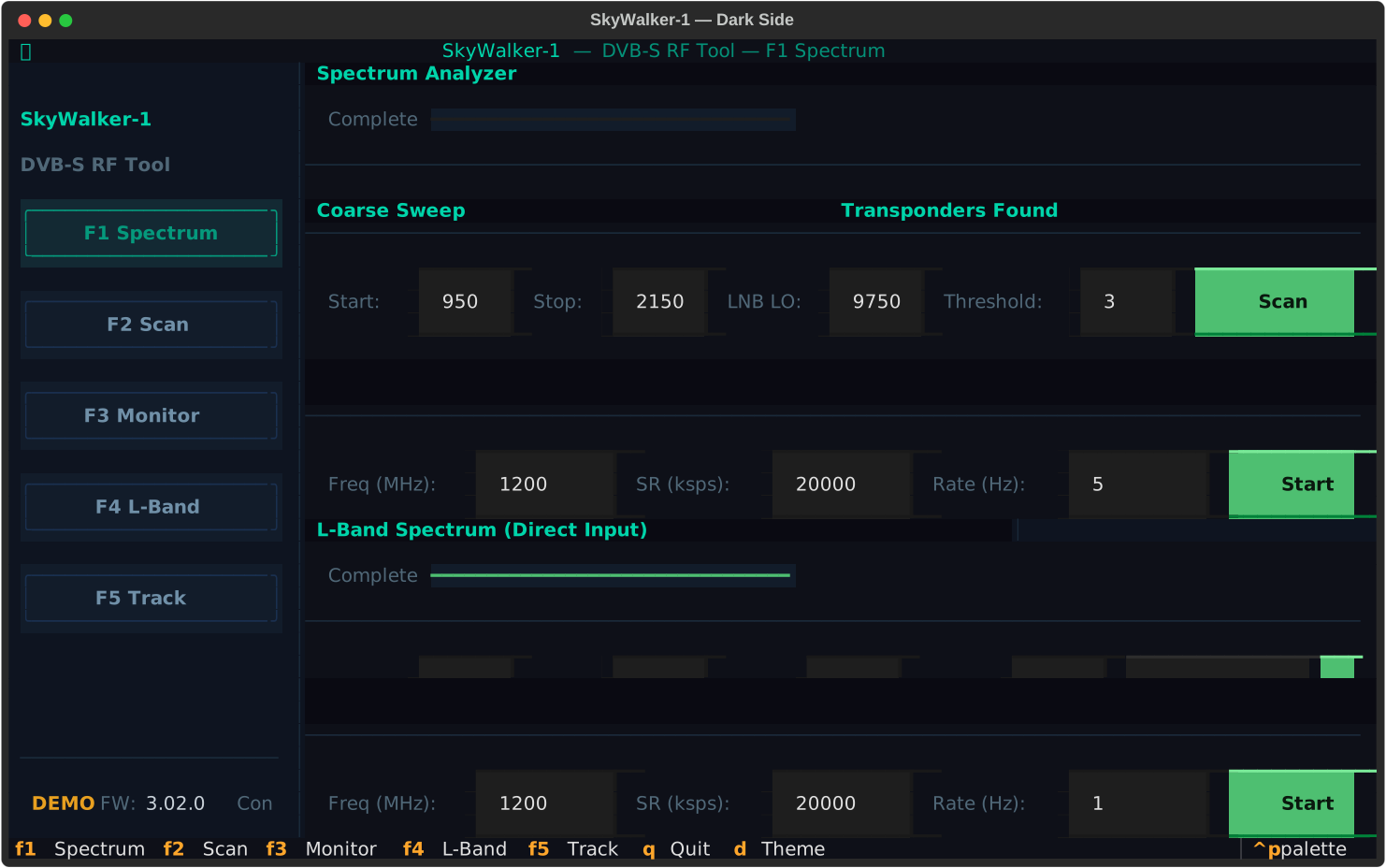
Switching back to light mode:
> *"The Force awakens."*
> — A New Hope
### Star Wars
Press Ctrl+W to open the Star Wars overlay. It attempts to connect to `towel.blinkenlights.nl:23` for the classic ASCII Star Wars telnet animation. If the connection fails (port 23 is blocked on many networks), a built-in opening crawl plays instead — complete with a SkyWalker-1 themed storyline and Star Destroyer ASCII art.
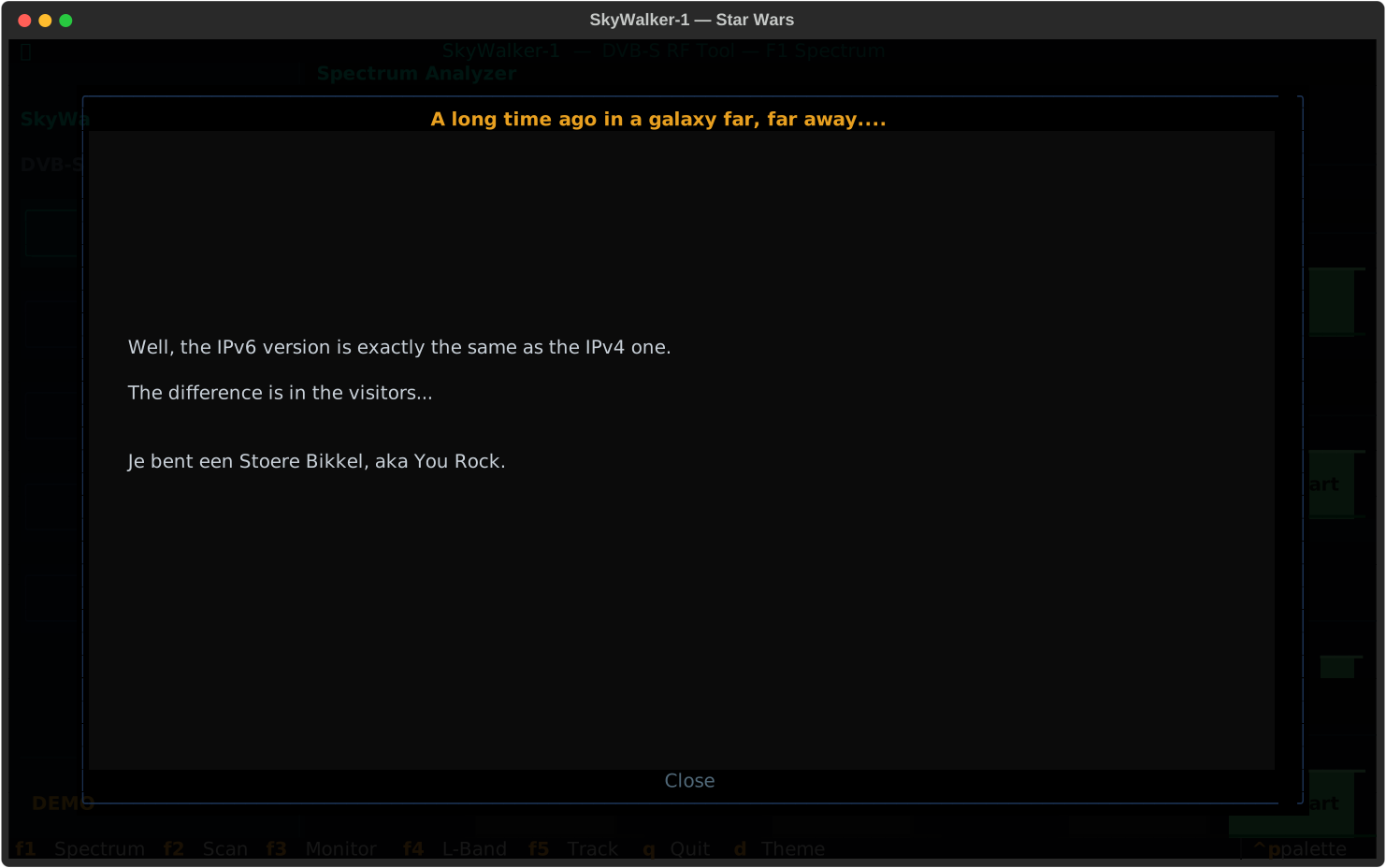
Press Esc to close the overlay and return to the main dashboard.
### Kitty Cat
When running inside the [Kitty terminal](https://sw.kovidgoyal.net/kitty/), the splash screen adds a subtle 🐱 to the title bar. A small nod to the terminal that made it all possible.
---
## Splash Screen
On startup, the TUI displays a randomly selected piece of ASCII art from the [16colo.rs / Mistigris](https://16colo.rs/) archives — pre-baked as ANSI half-block art for instant rendering. The splash auto-dismisses after 5 seconds or on any keypress.
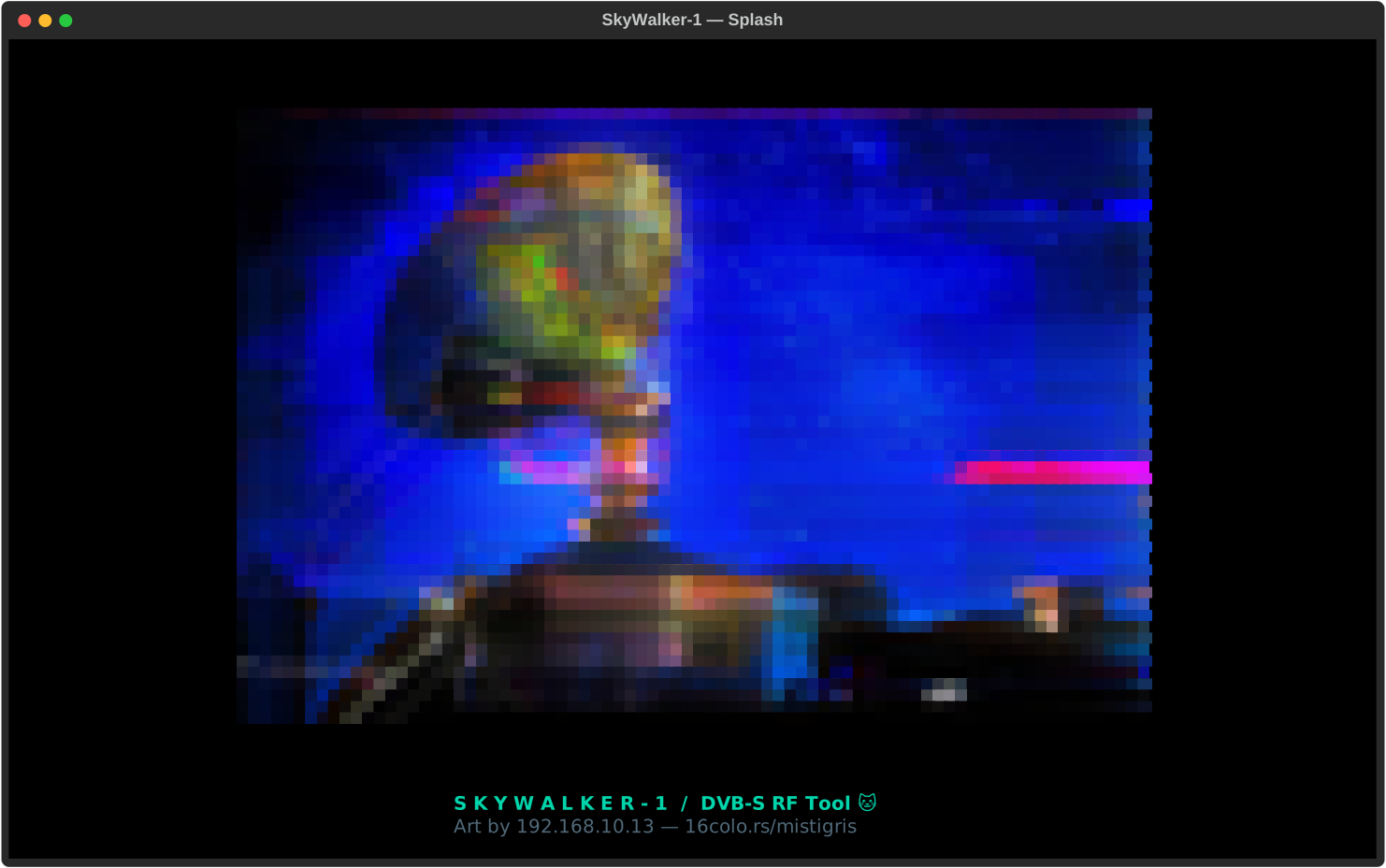
Use `--no-splash` to skip it.
---
## See Also
- [SkyWalker RF Tool](/tools/skywalker/) — CLI version of the same 5 modes (text-only output, scriptable)
- [Spectrum Analysis](/tools/spectrum-analysis/) — practical how-to guides for each operating mode
- [Signal Monitoring](/bcm4500/signal-monitoring/) — SIGNAL_MONITOR register protocol and data format
- [Tuning Tool](/tools/tuning/) — primary tuning, LNB control, and transport stream capture
- [RF Coverage](/hardware/rf-coverage/) — frequency coverage and antenna considerations